FurNote / Guides / FurNote login
How to Log In to FurNote: Apple, Google, or Email
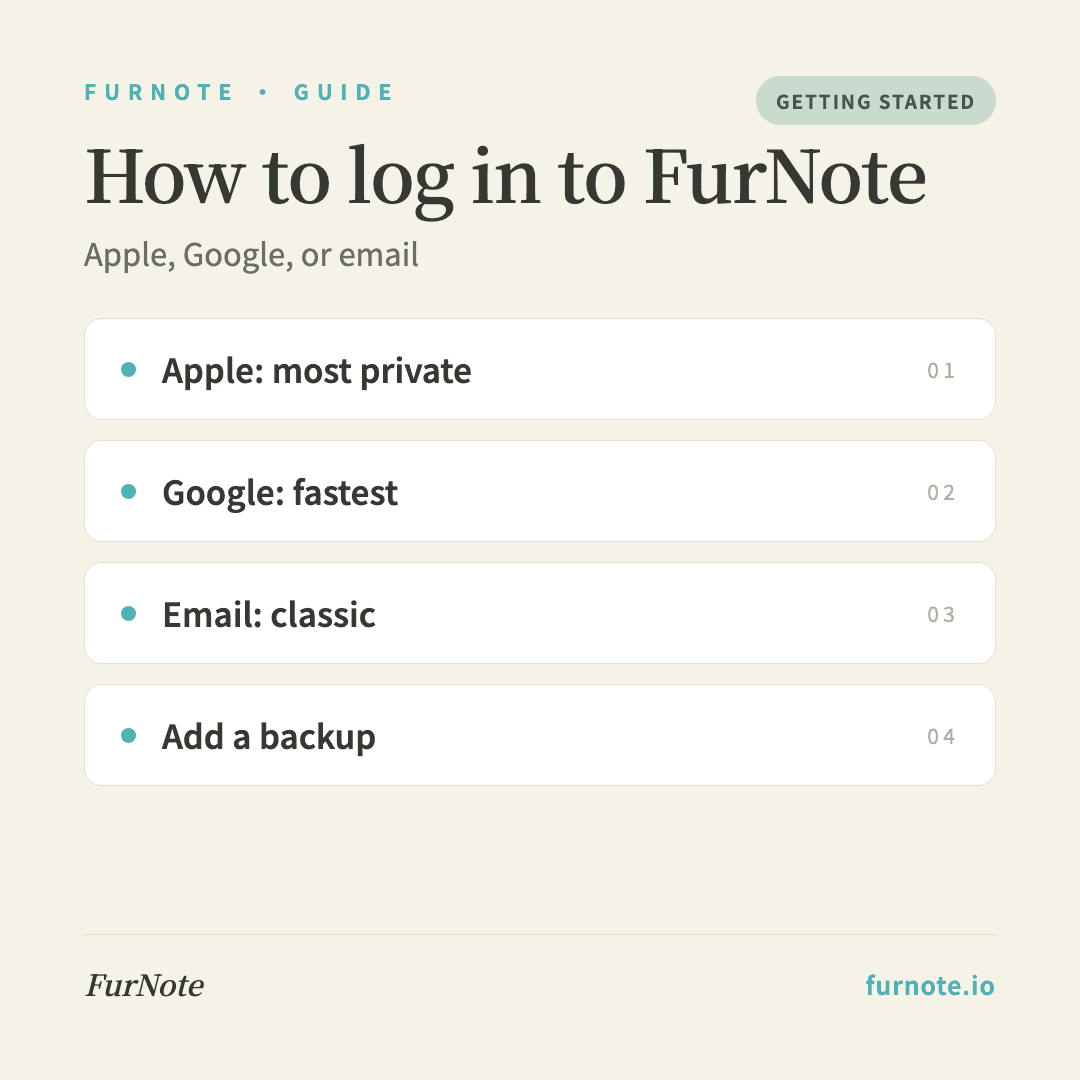
FurNote works on iOS, Android, and the web, and every sign-in method connects to the same account, so your pet's records stay in sync everywhere. You can sign in with Apple (hides your email, the most private), Google (one tap, fastest on Android and Chrome), or email + password (the classic approach). For your first sign-in, pick the method you use most and won't forget, then add an email as a backup so you can always get back in.
How To
Track it with FurNote, step by step
STEP 01
Open the app and reach the sign-in screen
Tap Log in to open the sign-in screen. You'll see Sign in with Apple and Sign in with Google buttons, an email + password form, and — in regions where it's common — a LINE option.
STEP 02
Choose the method you use most
On iPhone, Apple is the smoothest: no email exposed, and Face ID signs you in with one tap. Heavy Google users get the fastest flow with Google on Android or Chrome. Prefer to manage things yourself? Email + password keeps you in control.
STEP 03
Complete the first authorization
Apple and Google show a system permission dialog the first time — approve it and you'll land on your dashboard in a second or two. With email, you'll enter your address, a password, and your name to create the account.
STEP 04
Add or confirm a backup email
Open Settings → Edit profile and make sure the email on file is one you actually check. If Apple or Google sign-in ever hiccups, that email lets you reset a password and get back in.
STEP 05
Understand how one account stays one account
FurNote (via Supabase Auth) treats the same email address as the same user, so Google, Apple, and email sign-ins that share one address all land in the same account. Pick one method at first sign-up and stick with it to avoid accidentally creating a second, empty account.
FAQ
Frequently asked
- Which login is the most private?
- Sign in with Apple. It offers Hide My Email, so FurNote never receives your real address — just a private [email protected] alias that forwards to you. The trade-off is that FurNote can only reach you through Apple's relay, not directly.
- Which login is fastest?
- Apple on iPhone, or Google on Android and Chrome. If you're already signed in to the system, Face ID or your fingerprint finishes it in about a second. Email is slower because you type a password each time.
- Can I use different sign-in methods for the same account?
- Yes, as long as they share the same email address — FurNote automatically links them into one account. The catch: if you turn on Apple's Hide My Email, that alias differs from your Google address and gets treated as a separate account. To avoid a split account, keep using the method you started with.
- What if I forget my email password?
- On the sign-in screen, tap Forgot password, enter your email, and we'll send a reset link. If you sign in with Apple or Google you don't have a FurNote password at all — you authenticate through them — but you can add an email login as a backup in Settings anytime.
- Do iOS and Android stay in sync?
- Yes. Every sign-in method connects to the same account and produces one user identity. Log in on iPhone, iPad, and Android with the same method and you'll see the same pets and records. Family members using their own phones need a Family Sharing invite (Pro) to sync with you.
Start tracking
Download FurNote and set up your pet's health record in a minute
Last updated: 2026-07-20